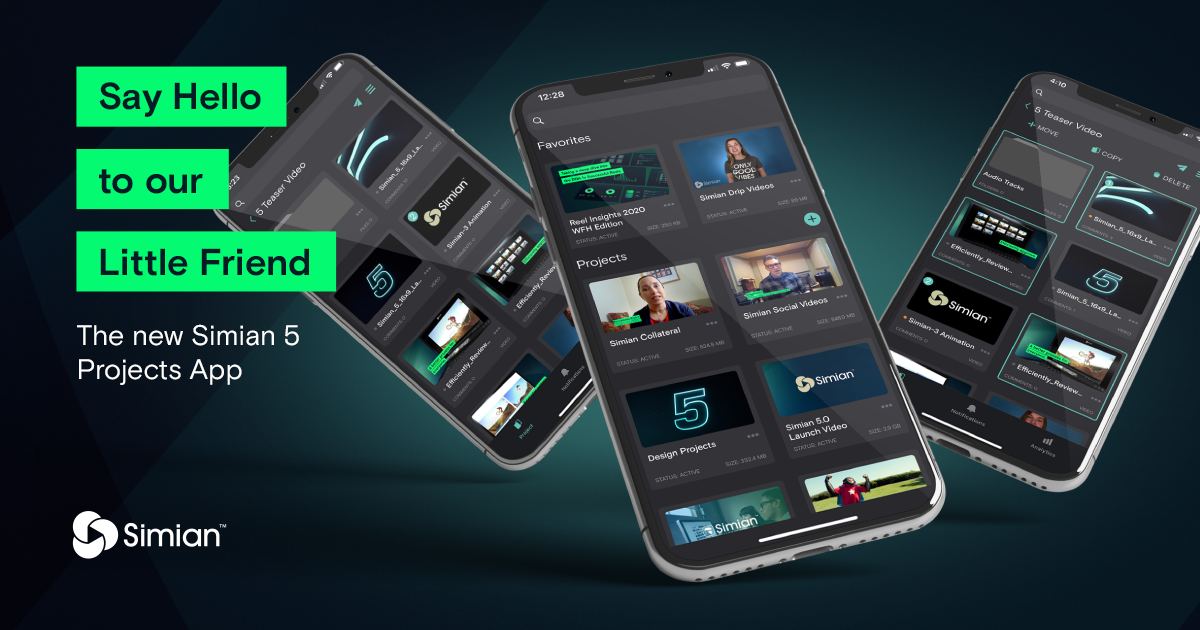
Simian Projects is an iOS app for creating, administering and sending project presentations from a mobile device.
Download Simian Projects from the App Store.
Compatibility Requirements:
• iOS 7.0 or later
Compatibility Devices:
• iPhone
• iPad
• iPod Touch
- Log into Simian Projects
- Create a New Project
- Create and Manage Folders
- Manage Users
- Share Files and Folders
- Manage Notifications and Settings
- Approve, Reject and Comment
- Manage Project Information
- Launch Simian Projects to log in.
- Enter your Simian URL (e.g. companyname.gosimian.com).
- Enter your username and password.
- Press Log In.
- Launch the Simian Projects app.
- Press the + button in the upper right corner.
- Enter a Project Name.
- Press Create to view the project in the My Projects list.
- Press on the project title to enter the project.
To create a folder:
- From inside the Project click the sandwich menu in the upper right corner.
- Press + Create Folder.
- Enter a Folder Name.
- Press Create.
To rename a folder:
- Locate the folder.
- Swipe it to the right.
- Press the (i) icon.
- Select Rename.
- Enter a new folder name.
- Press OK.
To lock a folder:
- Locate the folder.
- Swipe it to the right.
- Press the lock icon to lock and unlock the folder.
Note: Locking folders prevents the folder's content from being seen by users with lower permission levels. Learn how to set custom permission levels.
To sort folders:
- Press the sandwich menu.
- Select Sort.
- Drag folders into the desired order.
- Press Done.
To move folders:
- Press the sandwich menu.
- Press Select.
- Select the folder(s) to be moved.
- Press the Move button.
- Select a destination folder.
- Press the Select button.
- From inside of a Project, click the Edit icon in the Icon tray.
- Press Manage Users.
Note: Active users will appear with a check mark next to their username under ACTIVE USERS. Inactive users will appear below INACTIVE USERS.
To add a new project user:
- Press the Add User button.
- Complete the required fields.
- Set their account Permission Level and project User Level to the appropriate access.
- Press Add.
To edit a permission level:
- Select a user from the either the ACTIVE or INACTIVE USERS.
- Select a new User Level.
- Press Save.
- Locate the file or folder.
- Swipe the file or folder to the right.
- Press the arrow send icon.
- Select a send option.
To send via Simian:
- Select Send Folder.
- Add a recipient by pressing the Email Address box and typing an email address(es).
- Alternatively, choose a contact from your address book by pressing the + icon.
- Press into the email message box and type a message.
- Press Done.
- Adjust presentation settings by pressing Options.
- Set presentation template and send options.
- When finished, press Send.
Tip: Preview your presentation before sending by pressing the Preview link.
To send via shortlink:
- Select Email Shortlink.
- This will bring up your default email provider.
- Add a recipient by typing an email address(es) into the To field.
- Customize the email Subject and Body.
- When finished, press Send.
To copy the shortlink without sending:
- Select Copy Shortlink.
- This will copy your presentation shortlink to your clipboard.
- From here you can paste the shortlink into any app (messaging, social media, etc.)
Manage Notifications and Settings
- Press the Edit icon at the bottom of the screen.
- Select Notifications / Settings.
- Turn On or Off the desired notifications and settings.
- Press Save.
- Locate the file.
- Tap the file to bring up the Detail Page.
- To approve, click the √ icon.
- To reject, click the X icon.
- To comment, click the comment bubble in the upper right corner.
- Enter a comment and press Done.
Note: Comments made in Simian Projects will not be time stamped.
Tip: To view comments, approvals, file Information and statistics, locate the file, swipe right and then press the (i) icon. Select from the available information in the menu to view.